

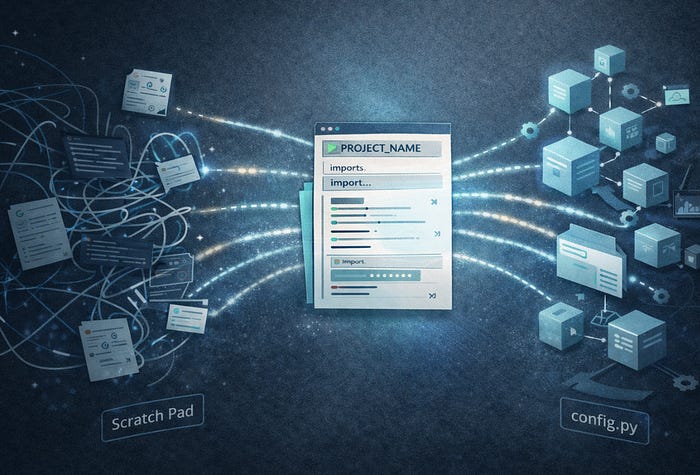
Part one of this series covered six habits: treating the notebook as a decision log rather than a script, writing a header cell before any code runs, separating exploration from the record, naming variables so they carry meaning across stages, the kernel restart test before closing, and the cold open test to check whether the notebook stands on its own without you.
Those habits make notebooks much easier to return to, hand over, or audit months later.
But habits without structure only get you so far. Every project still starts from scratch. You still spend a few minutes creating folders. You still copy an imports cell from an old notebook. You still hardcode a file path and then wonder why it breaks on a different machine or a colleague’s laptop.
This article is about the structure that makes those habits automatic. A folder layout that stays consistent across every project. A config.py that removes fragile relative paths. And a Cookiecutter template that generates everything in one command, including notebooks that open with your header and imports already in place.
The example focuses on geoscience project, but the structure applies to any Python data project.
The Folder Structure
Start every project with the same layout. The exact folder names matter less than the consistency. When every project looks the same, you stop thinking about where things live and start thinking about the work.
project_name/
├── notebooks/
│   ├── 01_exploration.ipynb       # scratch pad
│   ├── 02_analysis.ipynb          # clean story
│   └── archive/                   # old versions
├── src/
│   ├── __init__.py
│   ├── config.py                  # all paths
│   ├── data_loaders.py            # reusable loaders
│   └── plotting.py                # plot styling and saving
├── data/
│   ├── raw/                       # never modify these
│   └── processed/                 # outputs from notebooks
├── outputs/
│   └── figures/
├── .gitignore
├── requirements.txt
├── CHANGELOG.md
└── README.md
Three rules make this structure work.
data/raw/ is read only.
Notebooks read from it, but never write to it. That means you can rerun the entire project from scratch without worrying about overwriting source data.
All outputs stay with the project.
Processed data goes to data/processed/. Figures go to outputs/figures/. Nothing ends up scattered across a desktop or Downloads folder.
src/ is for reusable code.
If you have copied something between notebooks more than once, it belongs here. This is especially useful if you have re-usable code functions that you have developed over time, and don’t want to rewrite from scratch each time. You can place these functions in here. Who knows, eventually these reusable functions may turn into well developed apps in the future!
The Quick Profile
Not every task needs the full structure shown above. Sometimes you just want to answer a quick question, check something in a dataset, or run a one-off calculation.
For those sessions a stripped-down layout is more appropriate:
project_name/
├── notebooks/
│   └── 01_exploration.ipynb
├── data/
│   └── raw/
├── outputs/
└── README.md
No src/, no CHANGELOG, no archive. One notebook and minimal overhead.
You can always promote a quick project to a full one later if the work grows. Retrofitting structure onto a project that has already started and sprawled is much harder.
Both layouts can be generated automatically from the same Cookiecutter template (which we will cover later). When creating a new project using Cookiecutter you simply choose between a full or quick profile.
config.py: One File for All Your Paths
Hardcoded file paths are one of the most common reasons notebooks break. You write something like ../../data/raw/volve.csv, move the notebook to another folder, and suddenly nothing runs.
A simple fix is a central config.py in src/ that defines paths once for the entire project.
# src/config.py
from pathlib import Path

PROJECT_ROOT = Path(__file__).parent.parent
LOCAL_RAW    = PROJECT_ROOT / “data” / “raw”
PROCESSED    = PROJECT_ROOT / “data” / “processed”
FIGURES      = PROJECT_ROOT / “outputs” / “figures”
CENTRAL_DATA = Path.home() / “geoscience_data”

def find_data(filename: str) -> Path:
    local = LOCAL_RAW / filename
    if local.exists():
        return local
    central = CENTRAL_DATA / filename
    if central.exists():
        return central
    raise FileNotFoundError(
        f”{filename} not found in:\\n  {LOCAL_RAW}\\n  {CENTRAL_DATA}”
    )
This solves two problems that appear frequently in geoscience work.
Many teams maintain large reference datasets that get reused across projects: the Volve dataset, FORCE well logs, shared LAS libraries. Duplicating these inside every project folder wastes space and often leads to version drift.
It makes project handovers easier. If a colleague runs the notebook and the data is missing,
find_data()raises a clear error showing exactly where the notebook expected to find it.
In a notebook the usage becomes simple:
import sys
sys.path.append(’../src’)

from config import find_data, PROCESSED, FIGURES
well_data = pd.read_csv(find_data(”volve_well_logs.csv”))
well_data.to_csv(PROCESSED / “well_data_clean.csv”, index=False)
The sys.path.append('../src') line assumes the notebook sits inside the notebooks/ folder. If you reorganise the project structure you may need to adjust this path.
No fragile relative paths scattered through the notebook.
src/plotting.py: Consistent Styles and Automatic Figure Naming
Two small annoyances appear on almost every project: inconsistent plot styling across notebooks, and figure files named figure1.png that become impossible to identify later.
Both issues can be solved with a small helper module called plotting.py. In here you can define the key style for your figures, and modify it later to suit your changing needs. Perhaps you change preference from light mode to dark mode, and need to make all your output figures with a dark background.
# src/plotting.py
import matplotlib.pyplot as plt
import datetime
from config import FIGURES

plt.rcParams.update({
    ‘figure.figsize’: (10, 6),
    ‘axes.spines.top’: False,
    ‘axes.spines.right’: False,
    ‘font.family’: ‘Arial’,
    ‘axes.titlesize’: 14,
    ‘axes.labelsize’: 12,
})

def save_fig(fig, name: str, dpi: int = 150):
    date = datetime.date.today().strftime(”%Y%m%d”)
    filepath = FIGURES / f”{date}_{name}.png”
    fig.savefig(filepath, dpi=dpi, bbox_inches=’tight’)
    print(f”Saved: {filepath}”)
In notebooks, you would call the following:
from plotting import save_fig

fig, ax = plt.subplots()
ax.plot(df[’DEPT’], df[’GR’])
save_fig(fig, ‘gr_curve_well_15_9_F1’)
# -> Saved: outputs/figures/20260226_gr_curve_well_15_9_F1.png
Every figure is automatically dated and saved into the project structure. The figures folder becomes a useful record rather than a mystery archive of unnamed files.
CHANGELOG.md and the Archive Convention
Two small additions that take very little effort but often prove useful later.
CHANGELOG.md records important changes made during the project. It does not replace git history. It simply captures decisions that might otherwise be forgotten.
## 2026-02-26
- Switched GR normalisation from standard scaler to min-max
- Added formation depth filter

## 2026-02-10
- Initial analysis complete
- Found three wells with incomplete NPHI data
Writing a quick entry at the end of a session often saves a lot of archaeology later. And if you are stuck for time, you could always use an LLM to pull the git history for the latest changes and write the changelog entry for you.
The archive convention works the same way. Before restructuring a notebook, move the previous version into notebooks/archive/ with a date prefix. The archive folder stays readable instead of becoming a dumping ground.
The Cookiecutter Template
Once you have the structure setup the way you need it to work, the final step is to automate its creation.
This can be done with Cookiecutter. It is a great tool for quickly starting new projects without having to recreate the structure every time.
Cookiecutter generates a complete project structure from a template with a single command. You configure the template once and reuse it for every new project.
And if you find yourself missing functionality or extra structure in your cookiecutter template, you can always expand it and apply it to any new projects.
Installing Cookiecutter
To install cookiecutter, open a terminal and type:
pip install cookiecutterCookiecutter Template structure
Create a template folder somewhere permanent on your machine. Keep it outside your project directories since this is a reusable tool.
geoscience-project-template/
├── cookiecutter.json
├── hooks/
│   └── post_gen_project.py
└── {{cookiecutter.project_slug}}/
    ├── notebooks/
    │   ├── 01_exploration.ipynb
    │   ├── 02_analysis.ipynb
    │   └── archive/
    │       └── .gitkeep
    ├── src/
    │   ├── __init__.py
    │   ├── config.py
    │   ├── data_loaders.py
    │   └── plotting.py
    ├── data/
    │   ├── raw/
    │   │   └── .gitkeep
    │   └── processed/
    │       └── .gitkeep
    ├── outputs/
    │   └── figures/
    │       └── .gitkeep
    ├── .gitignore
    ├── requirements.txt
    ├── CHANGELOG.md
    └── README.md
One thing I have found helpful, is asking Copilot/Claude to create the above structure for you.
cookiecutter.json
The cookiecutter.json file defines the prompts that appear when generating a project from the command line / terminal.
{
  “project_name”: “My Geoscience Project”,
  “project_slug”: “{{ cookiecutter.project_name.lower().replace(’ ‘, ‘_’) }}”,
  “author”: “Andy McDonald”,
  “description”: “A short description of the project”,
  “python_version”: “3.11”,
  “profile”: [”full”, “quick”]
}
The post-generation hook
After Cookiecutter creates the project, this small script runs automatically after. It removes files that are not needed for the selected profile (full vs quick).
import os
import shutil

profile = “{{cookiecutter.profile}}”
FULL_ONLY = [
    “src”,
    “notebooks/archive”,
    “notebooks/02_analysis.ipynb”,
    “data/processed”,
    “CHANGELOG.md”,
    “.gitignore”,
]
def remove(path):
    if os.path.isdir(path):
        shutil.rmtree(path)
    elif os.path.isfile(path):
        os.remove(path)
if profile == “quick”:
    for item in FULL_ONLY:
        remove(item)
    print(”\\nQuick project ready. Start with notebooks/01_exploration.ipynb”)
else:
    print(”\\nFull project ready.”)
    print(”Explore: notebooks/01_exploration.ipynb”)
    print(”Analyse: notebooks/02_analysis.ipynb”)
Starter notebooks
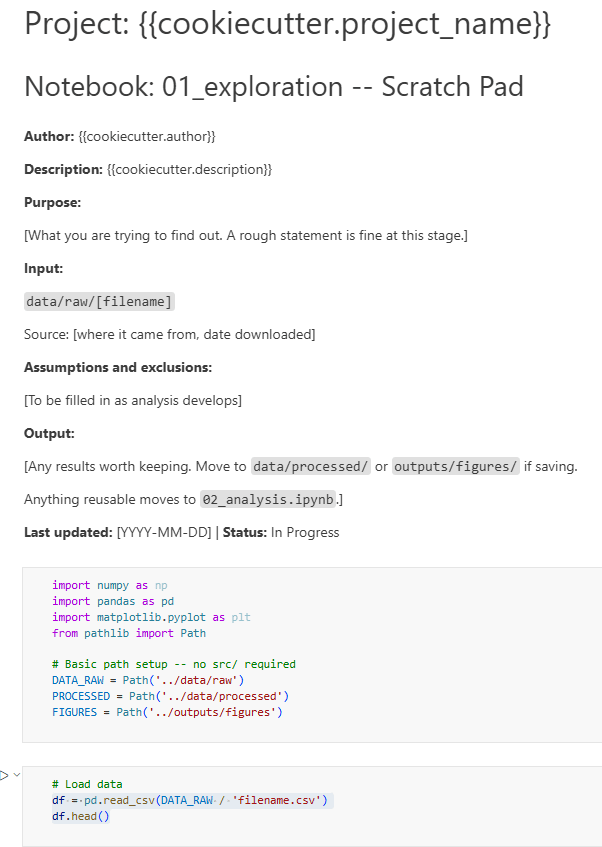
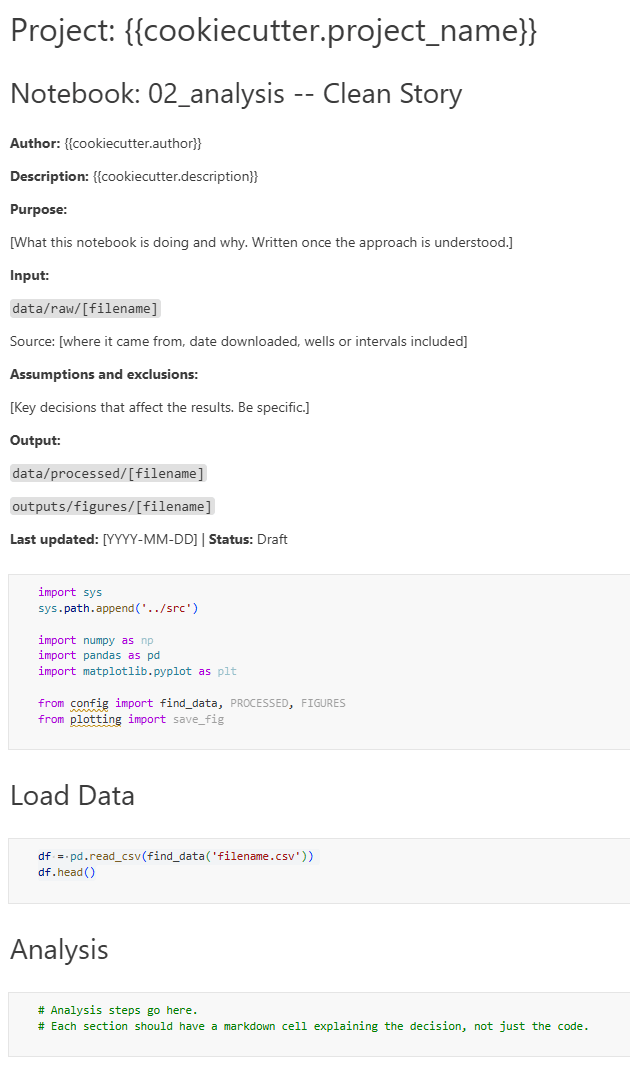
The template also includes starter notebooks with your usual header and imports already in place.
Because Jupyter notebooks are JSON files, Cookiecutter can substitute variables inside them automatically. The project name, description, and author fields appear directly in the first markdown cell.
Instead of starting from a blank notebook every time, you open one that already contains the structure you normally add manually.
The first notebook is the scratch pad or the exploration notebook:
The second is a more in depth notebook that allows you keep and prepare the full story.
The structure here only works if the notebooks inside it are written well. In part one of this series on Substack I cover the six habits that make notebooks readable and rerunnable months later. Link at the end.
Using the Cookiecutter template
Creating a new project becomes a single command from your terminal:
cookiecutter /path/to/geoscience-project-template/You will be prompted for a few details:
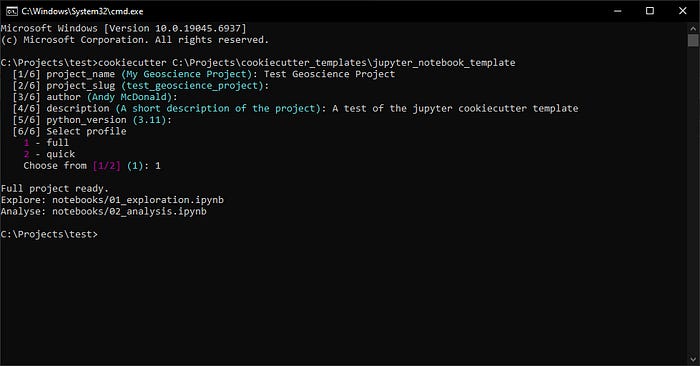
The full project structure appears immediately, ready to open in Jupyter.
Keep the Template Up to Date
Over time you will add utilities to src/, improve your default imports, or refine the structure slightly.
When that happens, update the template as well.
The template becomes a record of your current working practices. Every new project then begins from that baseline instead of from scratch.
Putting It All Together
The goal of everything in this article is to remove the friction that stops good habits from sticking and to also speed up the process of creating your geoscience Jupyter Notebook projects.
A consistent folder structure means you never spend five minutes deciding where things go. A central config.py means you never write a broken relative path again. A shared plotting.py means your figures are consistent without thinking about it. And a Cookiecutter template means all of it is in place before you write a single line of analysis code.
None of these pieces is complicated on its own. The value comes from using them together, consistently, on every project.
If you want to get started without building the template from scratch, the full geoscience project template used in this article is available on GitHub:
→ Jupyter Notebook Project Template on GitHub
This is part two of a two-part series. Part one covers the six habits that make notebooks easier to maintain and understand over time: treating the notebook as a decision log, writing a header cell before any code runs, separating exploration from the record, naming variables to carry meaning across stages, the kernel restart test, and the cold open test.
If the structure described here feels like too much right now, the habits from part one will still get you most of the way there. Once the structure is in place though, those habits become much easier to maintain because the environment nudges you toward them automatically.
→ Part 1: 6 Jupyter Notebook Habits That Make Your Work Easy to Return To